Alerts and change feed
Use Alerts to try temporary threshold rules and Change feed to inspect configuration activity.
Note: Balancer is in beta. Endpoints, fields and behavior may change before general availability, and the feature must be enabled on your account before use. Contact your NetActuate account manager to request access.
Alerts
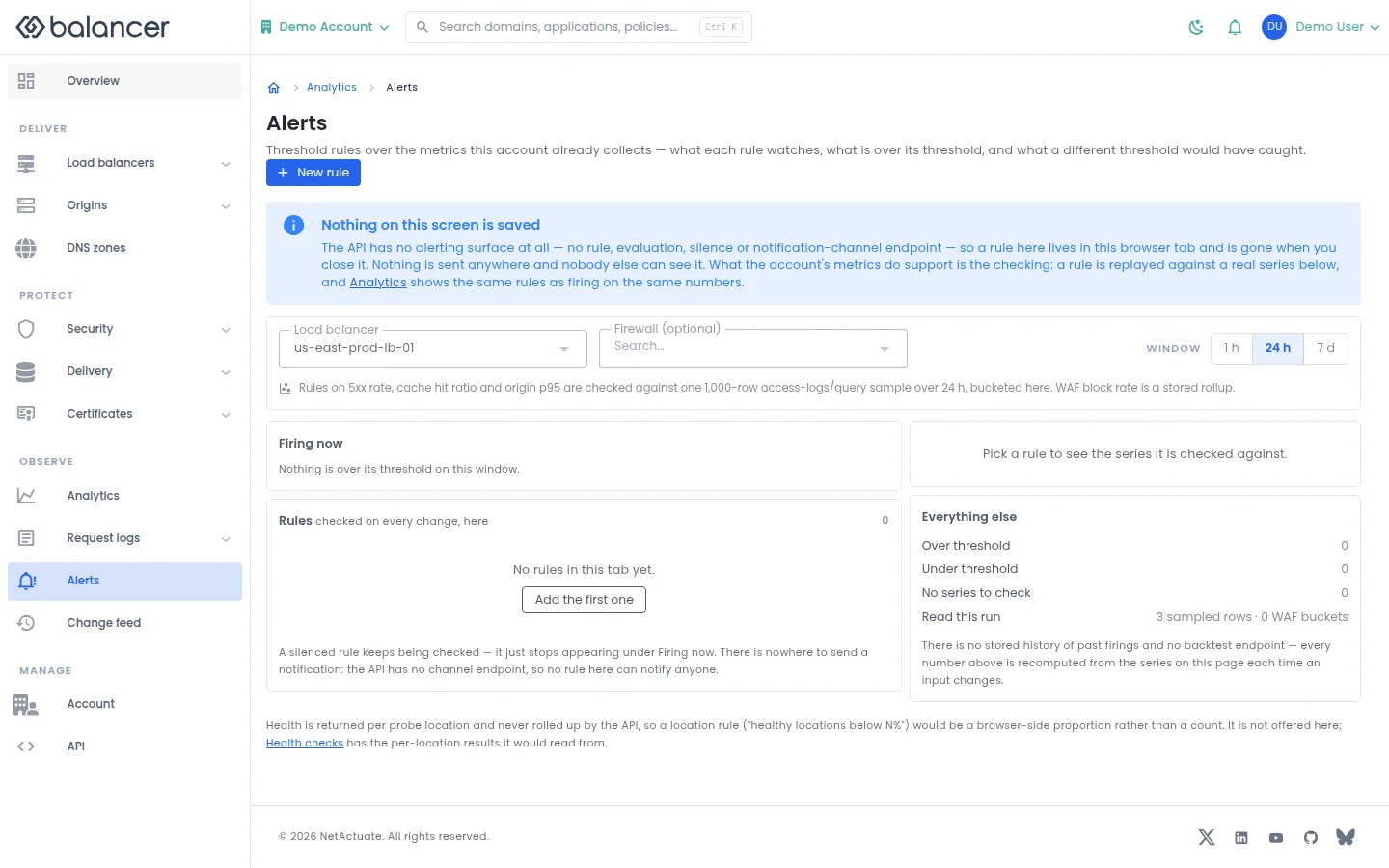
Try threshold rules against collected metrics. Nothing on this screen is saved: rules live only in the current browser tab and send no notifications.
- Open Alerts. Choose Load balancer, optionally Firewall (optional) and the time range.
- Select New rule, choose the metric and threshold and inspect the replay against the series.
- Check the displayed rule state. Closing the tab discards the rules.
| Field | Required | Description | Matching API field |
|---|---|---|---|
| Name | No | Label for this temporary rule. | None |
| Metric | Preselected | 5xx rate, Cache hit ratio, Origin p95 or WAF block rate. | None |
| Condition | Preselected | above or below. | None |
| Threshold | Preselected | Numeric threshold in the metric's displayed unit. | None |
| For | Preselected | Consecutive buckets; initially 1. | None |
The rule editor has no save request or required-field validation. The first three metrics use an access log sample capped at 1000 rows. WAF block rate uses stored WAF statistics.
Verify with the API
Use the API host shown in the Balancer portal in place of https://<your-api-host>. Set $BALANCER_API_KEY to your credential for this context.
curl --fail-with-body --silent --show-error --request GET \
  --url "https://<your-api-host>/http-loadbalancers" \
  --header "x-api-key: $BALANCER_API_KEY"
Expect HTTP 200 with code set to 200. The response includes data.meta, data.data[], data.meta.total, data.meta.offset. Compare the returned configuration with the screen. A successful configuration read does not verify that an edge has applied it.
API reference: List HTTP load balancers associated with your account.
Change feed
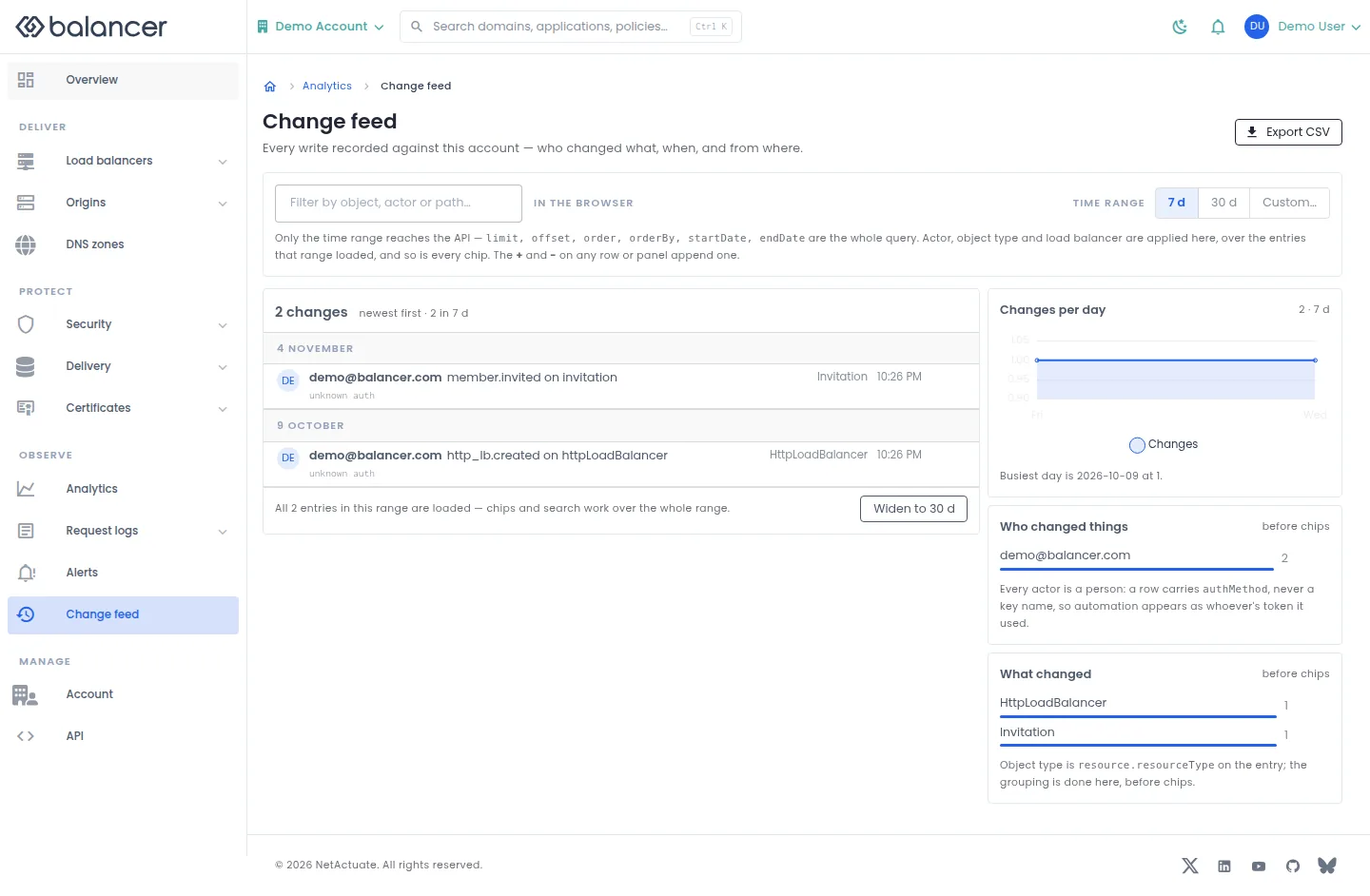
Review configuration changes in a selected time window.
- Open Change feed, then choose 7 d, 30 d or Custom....
- Use + or - on a value to include or exclude it. Check the time range and filtered changes.
- Select Export CSV to export the displayed changes.
Verify with the API
Use the API host shown in the Balancer portal in place of https://<your-api-host>. Set $BALANCER_API_KEY to your credential for this context.
curl --fail-with-body --silent --show-error --request GET \
  --url "https://<your-api-host>/http-loadbalancers" \
  --header "x-api-key: $BALANCER_API_KEY"
Expect HTTP 200 with code set to 200. The response includes data.meta, data.data[], data.meta.total, data.meta.offset. Compare the returned configuration with the screen. A successful configuration read does not verify that an edge has applied it.
API reference: List HTTP load balancers associated with your account.