Organizations
Use organization administration to manage organization membership, accounts, teams, SSO and activity.
Note: Balancer is in beta. Endpoints, fields and behavior may change before general availability, and the feature must be enabled on your account before use. Contact your NetActuate account manager to request access.
Before you begin
Choose the correct organization context. You need administrator access or the delegated capability for the task. Being an administrator does not grant access to a different context.
People and teams
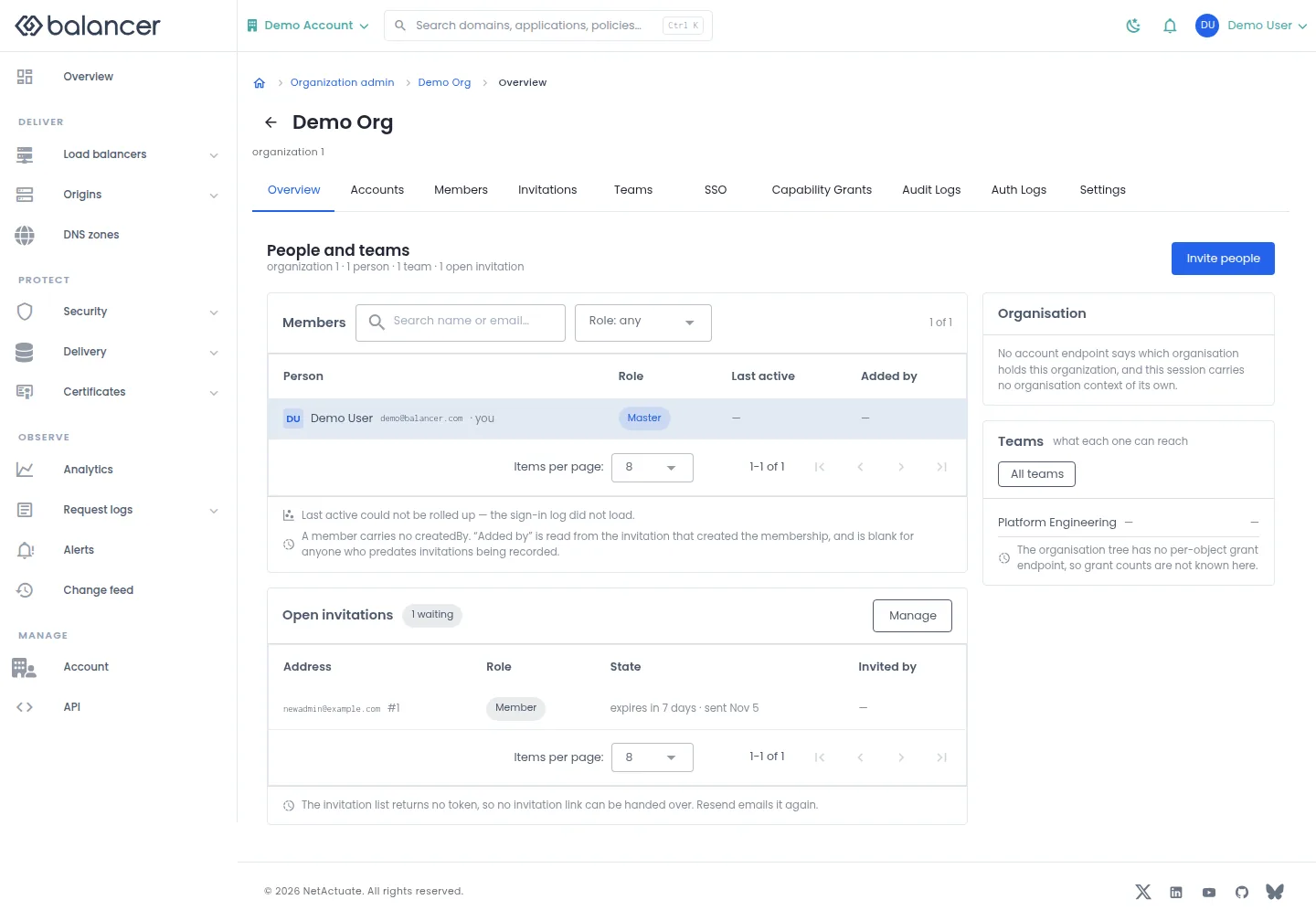
Review people, roles, open invitations and teams in the selected context. Missing activity values mean the screen has no activity to display.
- Open Overview in the administration area.
- Use Members and Role: any to narrow the people shown.
- Select Invite people to invite a person, Manage for open invitations or All teams for teams. Verify the corresponding list opens.
| Field | Required | Description | Matching API field |
|---|---|---|---|
| Email address | Yes | Valid email. Validation: Must be a valid email. | email |
| Role | Yes | Member or administrator; initially member. | isAdmin |
Verify with the API
Use the API host shown in the Balancer portal in place of https://<your-api-host>. Set $BALANCER_API_KEY to your credential for this context. Set $ORGANIZATION_ID to the resource identifiers you want to inspect.
curl --fail-with-body --silent --show-error --request GET \
  --url "https://<your-api-host>/organizations/$ORGANIZATION_ID" \
  --header "x-api-key: $BALANCER_API_KEY"
Expect HTTP 200 with code set to 200. The response includes data.organization, data.organization.organizationId, data.organization.name, data.organization.createdOn. Compare the returned configuration with the screen. A successful configuration read does not verify that an edge has applied it.
API reference: Return one organization.
Organization accounts
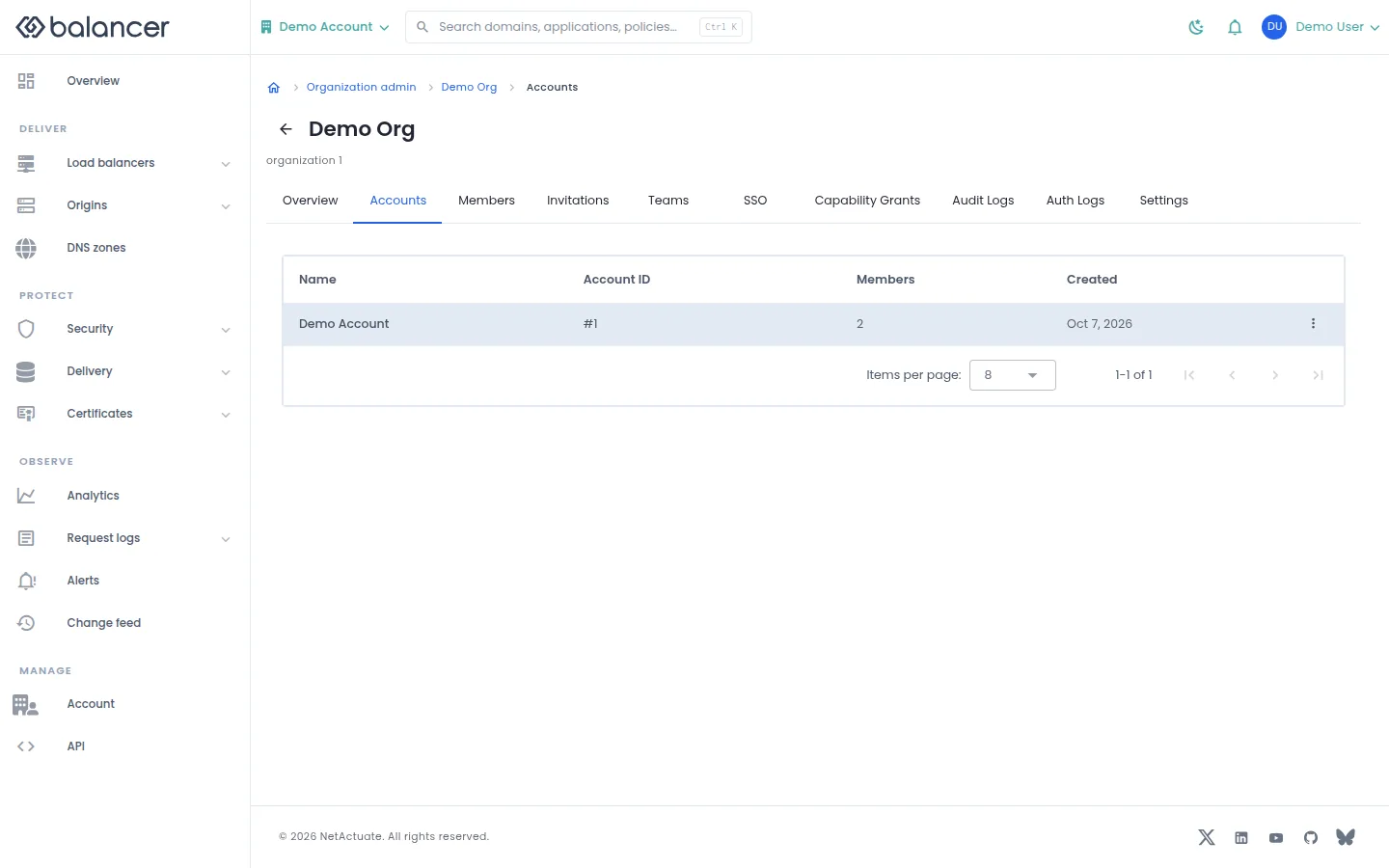
List accounts belonging to the selected organization.
- Open Accounts in organization administration.
- Review Name, Members and Created. To work on load balancers, use Switch account and choose an account context.
Verify with the API
Use the API host shown in the Balancer portal in place of https://<your-api-host>. Set $BALANCER_API_KEY to your credential for this context. Set $ORGANIZATION_ID to the resource identifiers you want to inspect.
curl --fail-with-body --silent --show-error --request GET \
  --url "https://<your-api-host>/organizations/$ORGANIZATION_ID/accounts" \
  --header "x-api-key: $BALANCER_API_KEY"
Expect HTTP 200 with code set to 200. The response includes data.meta, data.meta.total, data.meta.offset, data.meta.limit. Compare the returned configuration with the screen. A successful configuration read does not verify that an edge has applied it.
API reference: List accounts attached to an organization.
Audit Logs
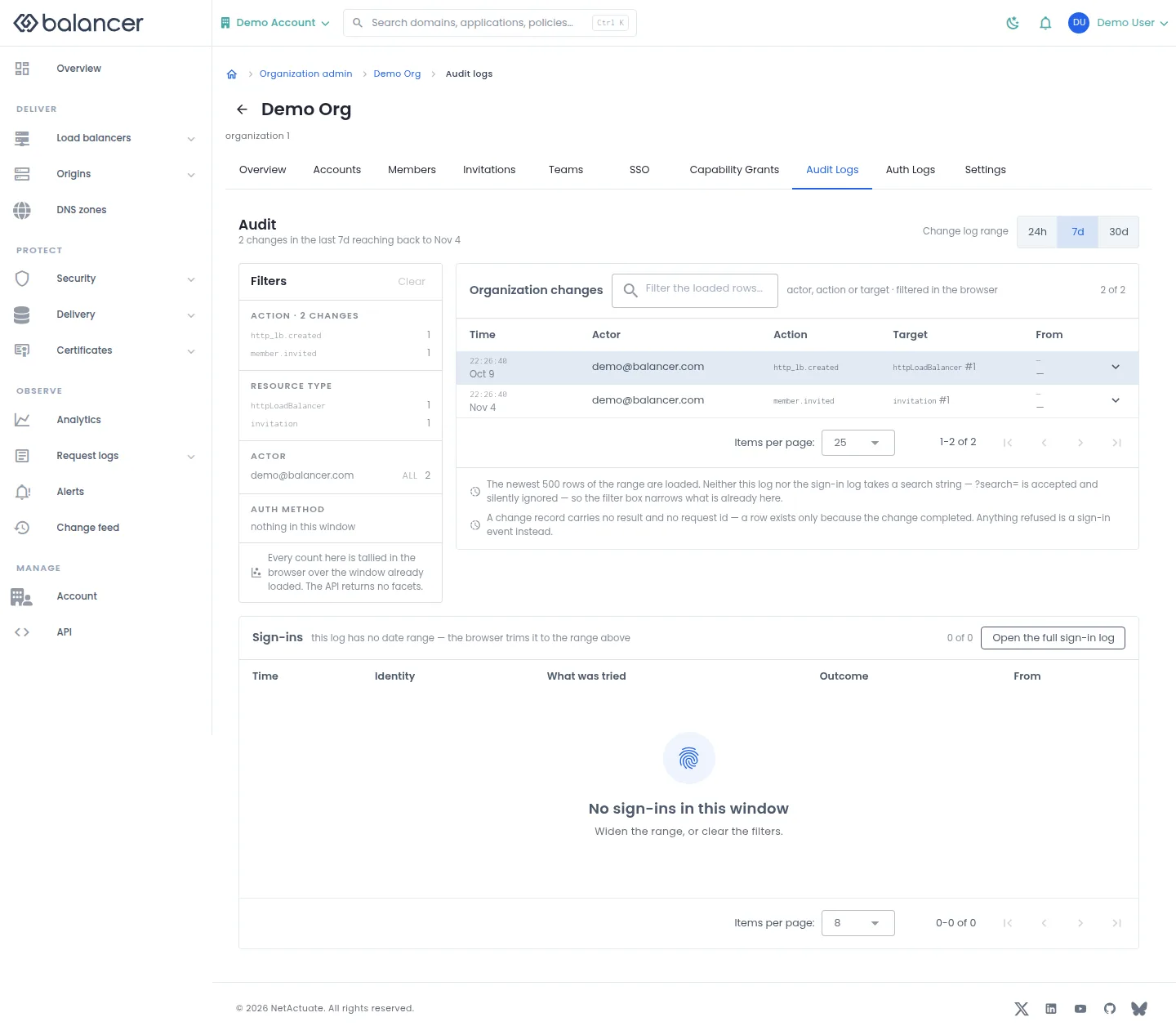
Review completed changes and their actors. The screen loads at most the newest 500 records for its window and filters those records locally.
- Open Audit Logs and select 24h, 7d or 30d.
- Use Filters to narrow the loaded records. Select Clear to remove filters.
- Check Time, Actor, Action, Target and From. Select Open the full sign-in log for authentication activity.
Verify with the API
Use the API host shown in the Balancer portal in place of https://<your-api-host>. Set $BALANCER_API_KEY to your credential for this context. Set $ORGANIZATION_ID to the resource identifiers you want to inspect.
curl --fail-with-body --silent --show-error --request GET \
  --url "https://<your-api-host>/organizations/$ORGANIZATION_ID/audit-logs" \
  --header "x-api-key: $BALANCER_API_KEY"
Expect HTTP 200 with code set to 200. The response includes data.meta, data.meta.total, data.meta.offset, data.meta.limit. Compare the returned configuration with the screen. A successful configuration read does not verify that an edge has applied it.
API reference: List organization audit logs.
Auth Logs
No screenshot is available for this screen.
Review authentication activity, including authenticated API requests. The screen loads the newest 500 entries and trims them to the selected time range.
- Open Auth Logs. Select 24h, 7d or 30d under Trim to.
- Use Filters to narrow the loaded entries. Select Clear to restore the list.
- Check What was tried and Outcome. If loading fails, select Try again; an empty or failed list does not establish that no activity occurred.
Verify with the API
Use the API host shown in the Balancer portal in place of https://<your-api-host>. Set $BALANCER_API_KEY to your credential for this context. Set $ORGANIZATION_ID to the resource identifiers you want to inspect.
curl --fail-with-body --silent --show-error --request GET \
  --url "https://<your-api-host>/organizations/$ORGANIZATION_ID/auth-logs" \
  --header "x-api-key: $BALANCER_API_KEY"
Expect HTTP 200 with code set to 200. The response includes data.meta, data.meta.total, data.meta.offset, data.meta.limit. Compare the returned configuration with the screen. A successful configuration read does not verify that an edge has applied it.
API reference: List organization authentication logs.
Capability Grants
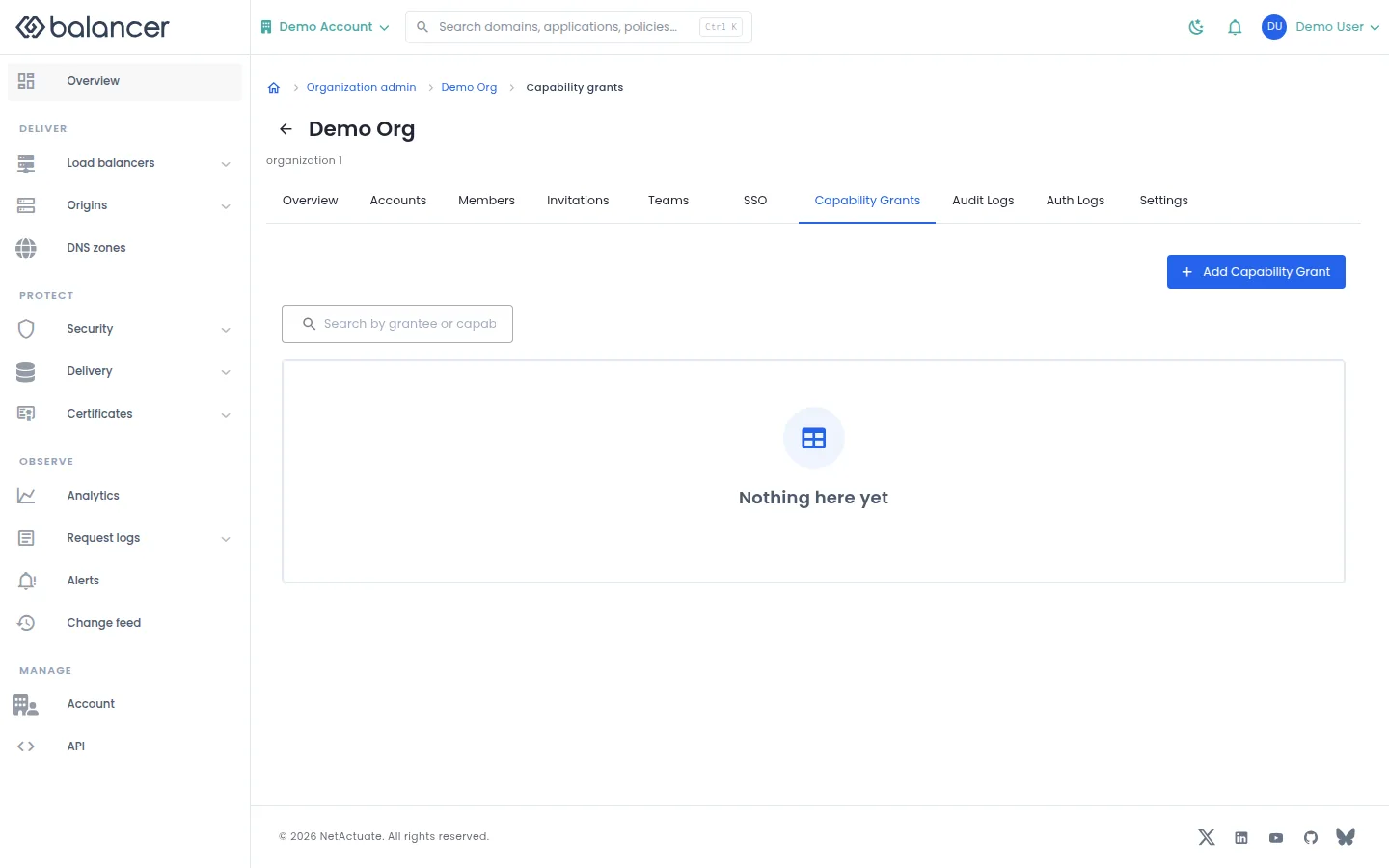
Delegate administrative capabilities to individual members or teams.
- Open Capability Grants, then select Add Capability Grant.
- Choose the grantee and Capability, then submit the dialog.
- Reload the list and verify the grant.
| Field | Required | Description | Matching API field |
|---|---|---|---|
| Grantee | Yes | Choose a member or team and the corresponding identity. | grantee.granteeType, grantee.granteeId |
| Capability | Yes | Select a capability offered for this context. | capability |
Verify with the API
Use the API host shown in the Balancer portal in place of https://<your-api-host>. Set $BALANCER_API_KEY to your credential for this context. Set $ORGANIZATION_ID to the resource identifiers you want to inspect.
curl --fail-with-body --silent --show-error --request GET \
  --url "https://<your-api-host>/organizations/$ORGANIZATION_ID/capability-grants" \
  --header "x-api-key: $BALANCER_API_KEY"
Expect HTTP 200 with code set to 200. The response includes data.meta, data.meta.total, data.meta.offset, data.meta.limit. Compare the returned configuration with the screen. A successful configuration read does not verify that an edge has applied it.
API reference: List organization capability grants.
Invitations
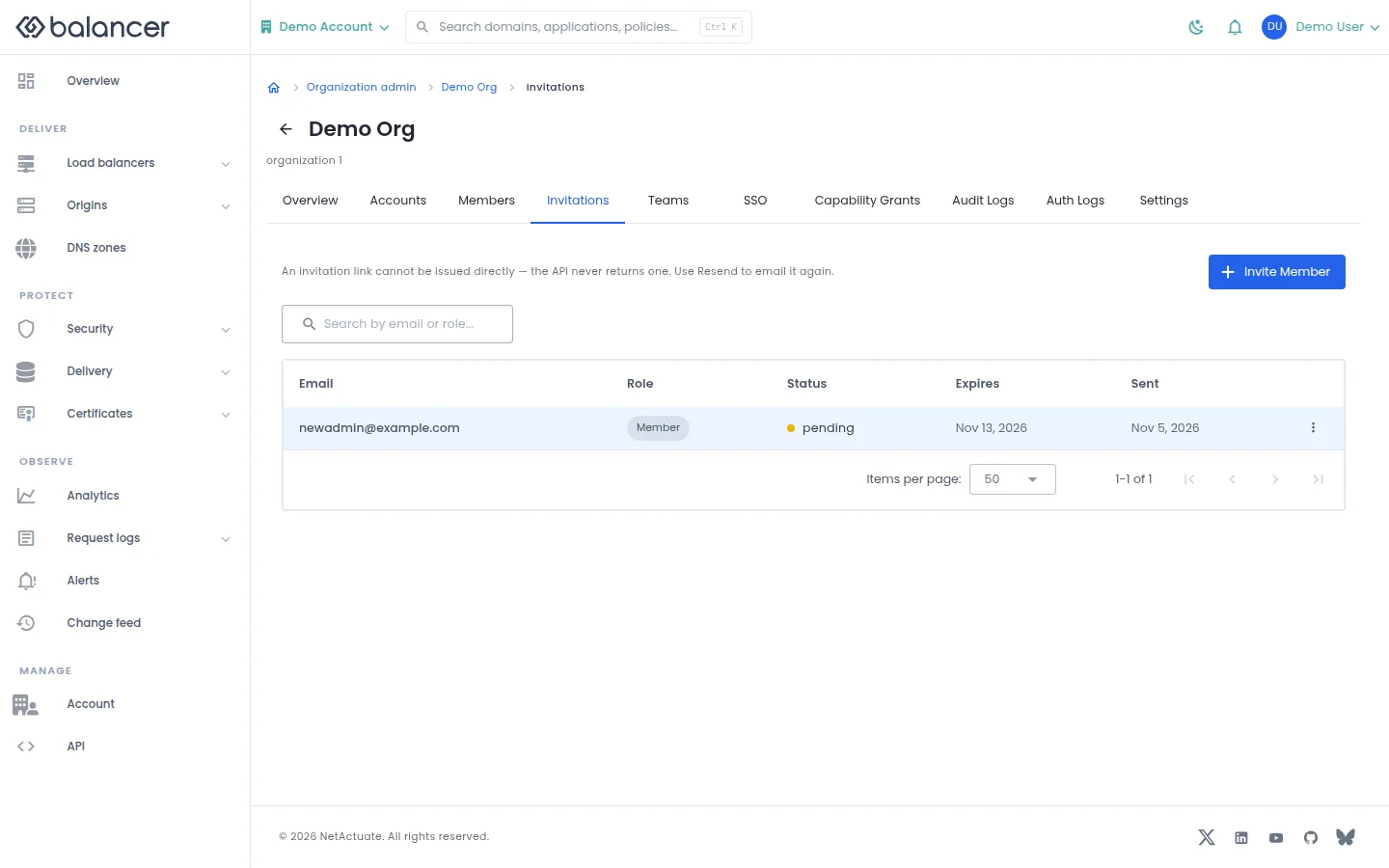
Invite members and review invitation state, expiry and send time. Invitation links are not returned for copying.
- Open Invitations and select Invite Member.
- Enter Email address, select Role and select Send Invitation.
- Verify the entry in Invitations. Use Resend from its actions to email the invitation again.
| Field | Required | Description | Matching API field |
|---|---|---|---|
| Email address | Yes | Valid email. Validation: Must be a valid email. | email |
| Role | Yes | Member or administrator; initially member. | isAdmin |
API equivalent
Invite a member to the organization. Use the API host shown in the Balancer portal in place of https://<your-api-host>. Set $BALANCER_API_KEY to your credential for this context. Set $ORGANIZATION_ID to the selected resources.
curl --fail-with-body --silent --show-error --request POST \
  --url "https://<your-api-host>/organizations/$ORGANIZATION_ID/invitations" \
  --header "x-api-key: $BALANCER_API_KEY" \
  --header "Content-Type: application/json" \
  --data '{"invitation":{"email":"user@example.com","isAdmin":false}}'
Expect HTTP 200 with code set to 200. The response acknowledges the stored change. Reopen the portal screen or run the read example below to verify it.
API reference: Create an organization invitation.
Verify with the API
Use the API host shown in the Balancer portal in place of https://<your-api-host>. Set $BALANCER_API_KEY to your credential for this context. Set $ORGANIZATION_ID to the resource identifiers you want to inspect.
curl --fail-with-body --silent --show-error --request GET \
  --url "https://<your-api-host>/organizations/$ORGANIZATION_ID/invitations" \
  --header "x-api-key: $BALANCER_API_KEY"
Expect HTTP 200 with code set to 200. The response includes data.meta, data.meta.total, data.meta.offset, data.meta.limit. Compare the returned configuration with the screen. A successful configuration read does not verify that an edge has applied it.
API reference: List organization invitations.
Members
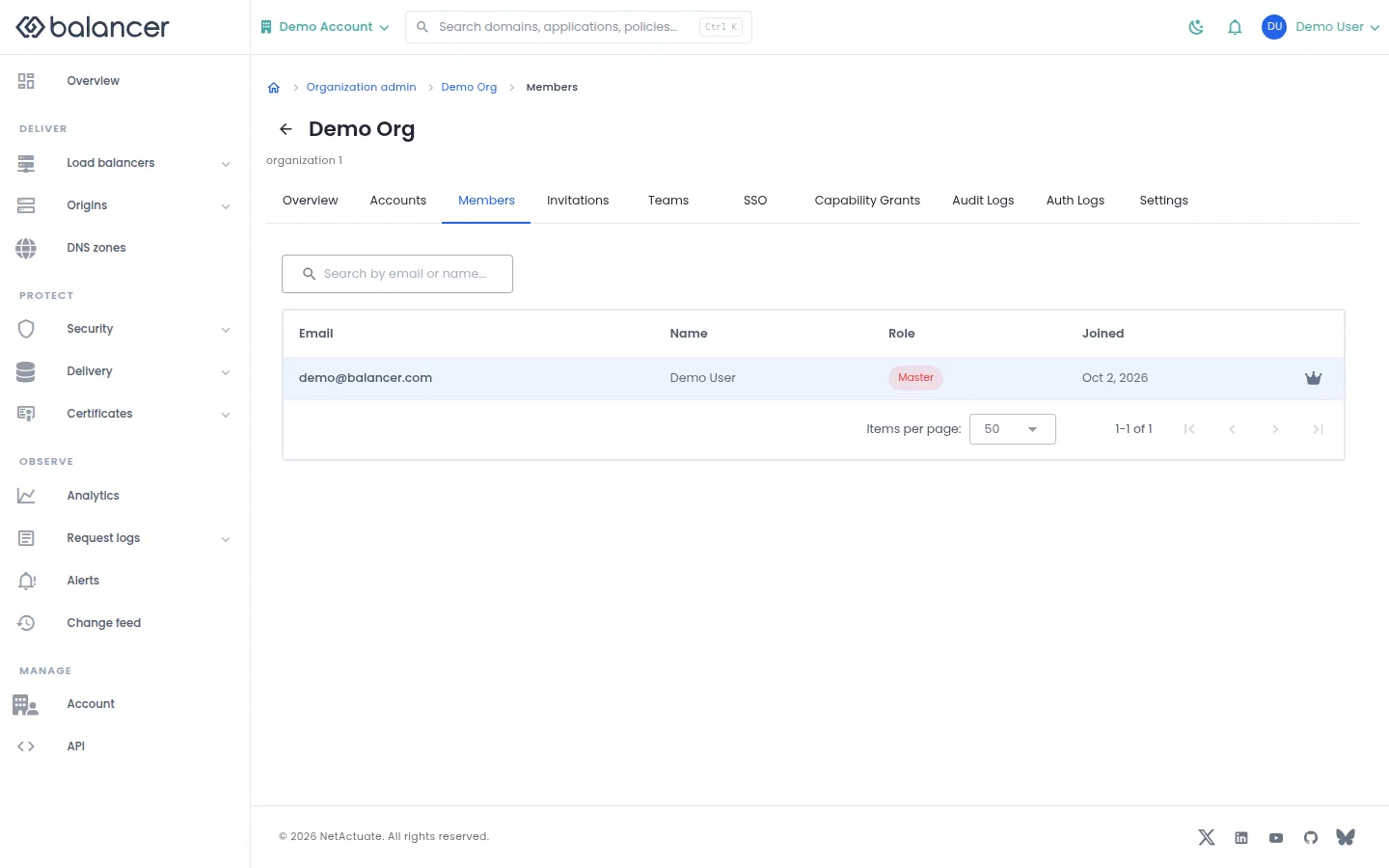
Review current members and their roles in the selected account or organization.
- Open Members.
- Review Email, Name, Role and Joined. For an account member, open the member to inspect its profile and effective access.
- After a membership change, reload Members to verify the role or removal.
Verify with the API
Use the API host shown in the Balancer portal in place of https://<your-api-host>. Set $BALANCER_API_KEY to your credential for this context. Set $ORGANIZATION_ID to the resource identifiers you want to inspect.
curl --fail-with-body --silent --show-error --request GET \
  --url "https://<your-api-host>/organizations/$ORGANIZATION_ID/members" \
  --header "x-api-key: $BALANCER_API_KEY"
Expect HTTP 200 with code set to 200. The response includes data.meta, data.meta.total, data.meta.offset, data.meta.limit. Compare the returned configuration with the screen. A successful configuration read does not verify that an edge has applied it.
API reference: List organization members.
People and teams (alternate view 2)
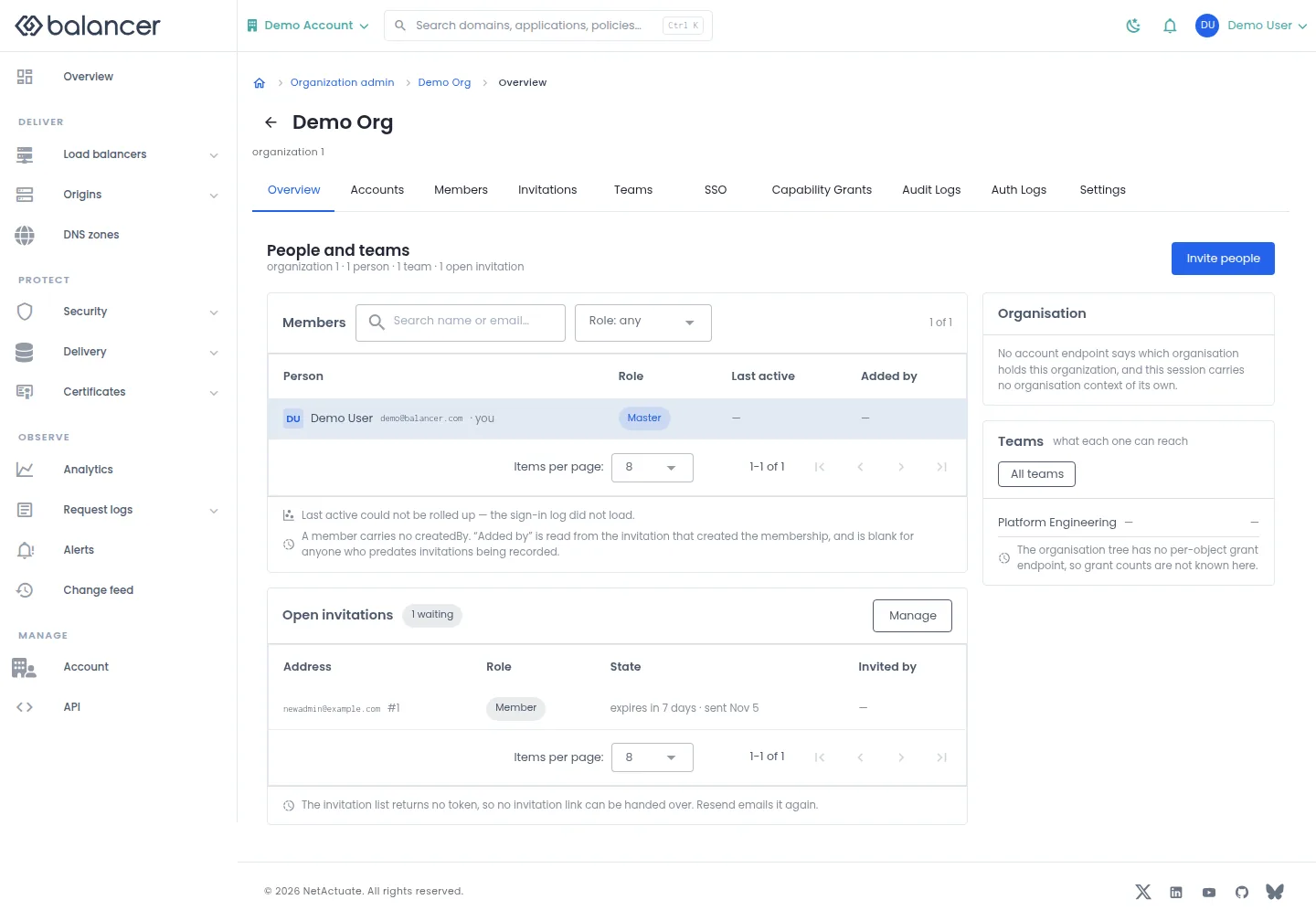
Review people, roles, open invitations and teams in the selected context. Missing activity values mean the screen has no activity to display.
- Open Overview in the administration area.
- Use Members and Role: any to narrow the people shown.
- Select Invite people to invite a person, Manage for open invitations or All teams for teams. Verify the corresponding list opens.
| Field | Required | Description | Matching API field |
|---|---|---|---|
| Email address | Yes | Valid email. Validation: Must be a valid email. | email |
| Role | Yes | Member or administrator; initially member. | isAdmin |
Verify with the API
Use the API host shown in the Balancer portal in place of https://<your-api-host>. Set $BALANCER_API_KEY to your credential for this context. Set $ORGANIZATION_ID to the resource identifiers you want to inspect.
curl --fail-with-body --silent --show-error --request GET \
  --url "https://<your-api-host>/organizations/$ORGANIZATION_ID" \
  --header "x-api-key: $BALANCER_API_KEY"
Expect HTTP 200 with code set to 200. The response includes data.organization, data.organization.organizationId, data.organization.name, data.organization.createdOn. Compare the returned configuration with the screen. A successful configuration read does not verify that an edge has applied it.
API reference: Return one organization.
Organization settings
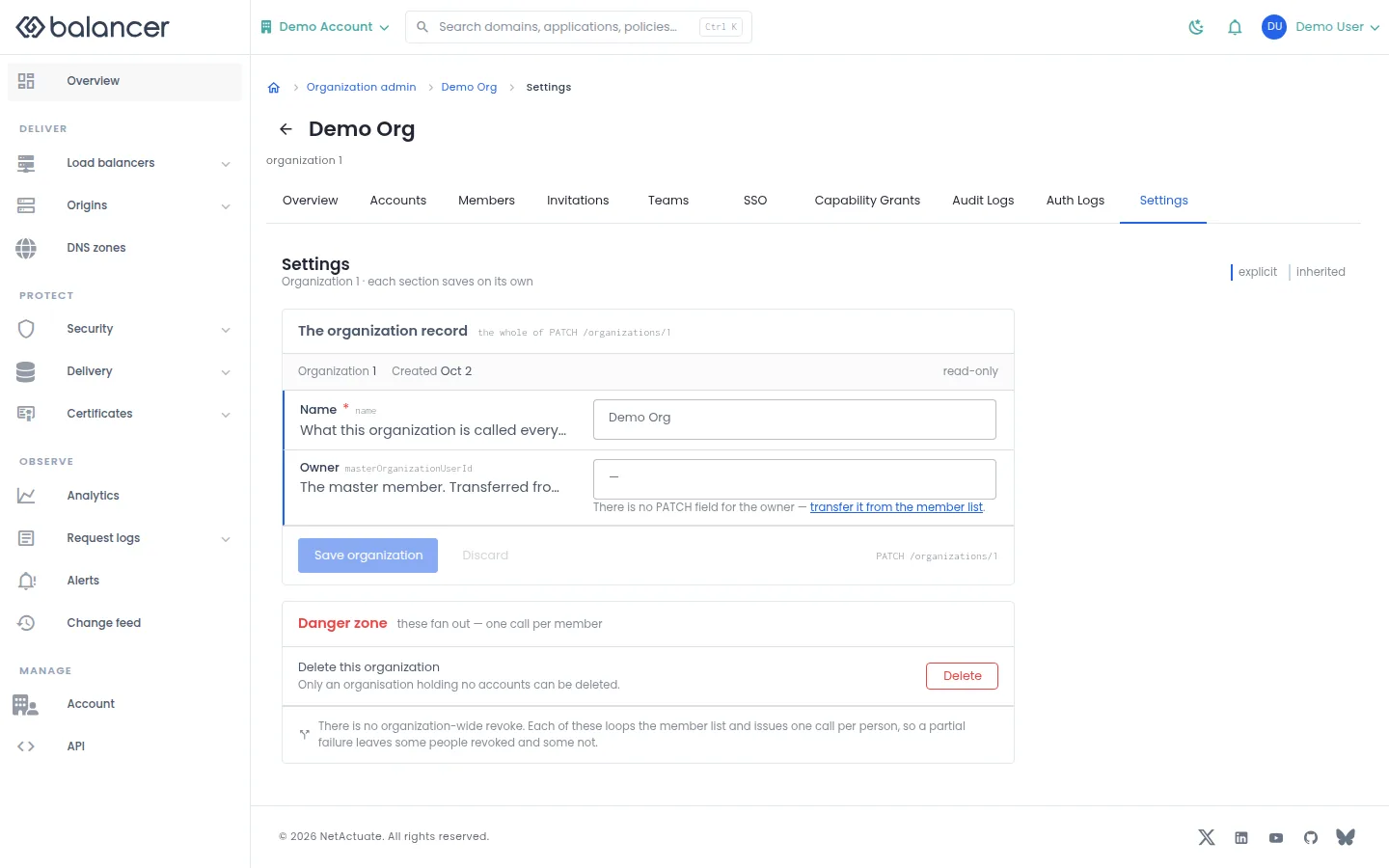
Rename an organization or delete an organization that contains no accounts.
- Open Settings, update Name and select Save organization. Reload to verify.
- To delete an empty organization, select Delete and confirm. Move out of the organization context after deletion.
| Field | Required | Description | Matching API field |
|---|---|---|---|
| Name | Yes | Organization display name. | name |
API equivalent
Rename the selected organization. Use the API host shown in the Balancer portal in place of https://<your-api-host>. Set $BALANCER_API_KEY to your credential for this context. Set $ORGANIZATION_ID to the selected resources.
curl --fail-with-body --silent --show-error --request PATCH \
  --url "https://<your-api-host>/organizations/$ORGANIZATION_ID" \
  --header "x-api-key: $BALANCER_API_KEY" \
  --header "Content-Type: application/json" \
  --data '{"organization":{"name":"example.com"}}'
Expect HTTP 200 with code set to 200. The response acknowledges the stored change. Reopen the portal screen or run the read example below to verify it.
API reference: Update an organization container.
Verify with the API
Use the API host shown in the Balancer portal in place of https://<your-api-host>. Set $BALANCER_API_KEY to your credential for this context. Set $ORGANIZATION_ID to the resource identifiers you want to inspect.
curl --fail-with-body --silent --show-error --request GET \
  --url "https://<your-api-host>/organizations/$ORGANIZATION_ID" \
  --header "x-api-key: $BALANCER_API_KEY"
Expect HTTP 200 with code set to 200. The response includes data.organization, data.organization.organizationId, data.organization.name, data.organization.createdOn. Compare the returned configuration with the screen. A successful configuration read does not verify that an edge has applied it.
API reference: Return one organization.
Single sign-on
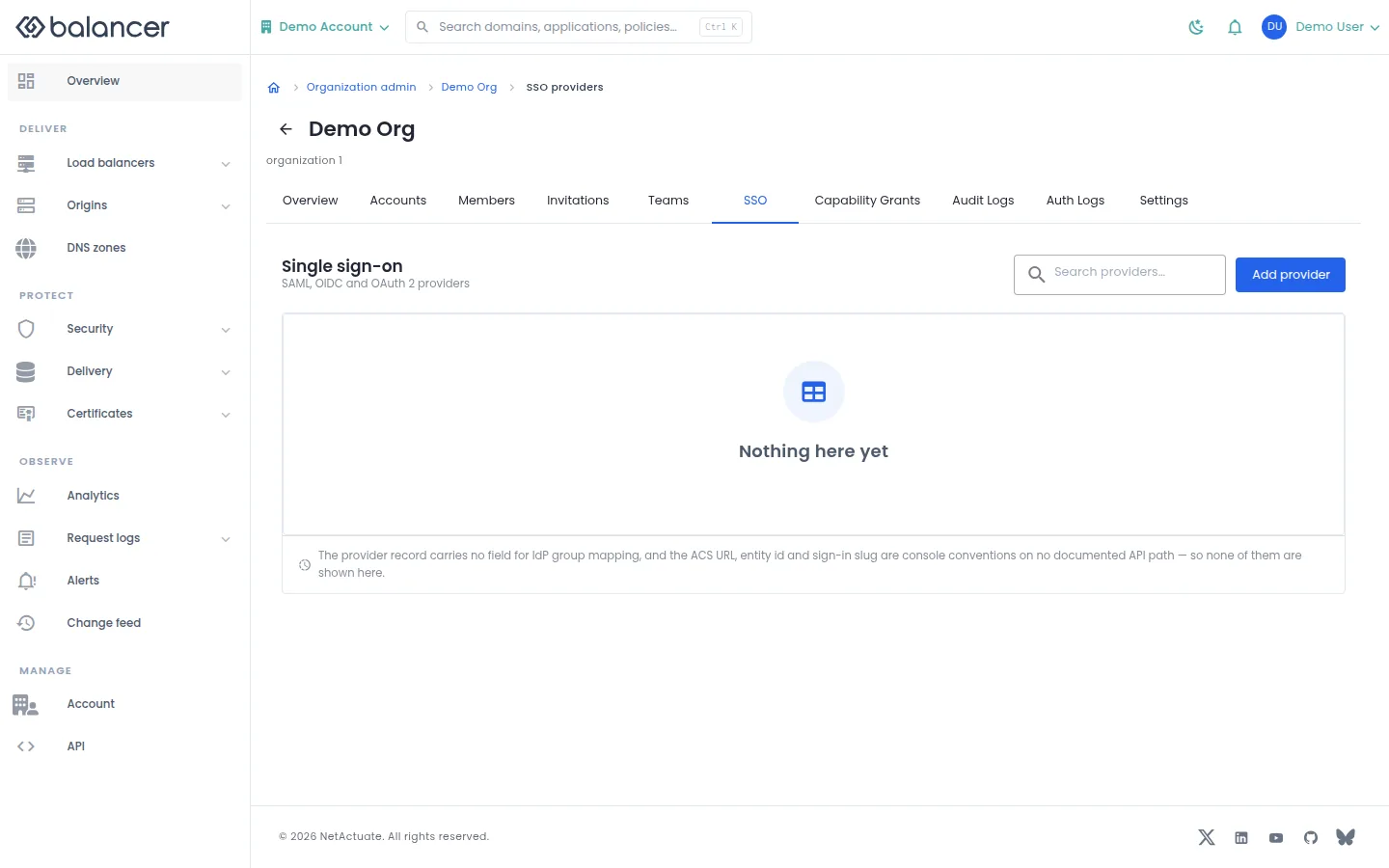
Inspect SSO providers for the selected context. The list distinguishes provider type, email domain and sign-in availability.
- Open SSO and review the provider list.
- Select Add provider to inspect Provider Type and its fields. Verify an existing provider's domain and sign-in state in the list.
TODO(verify): Confirm that the portal submits SSO provider settings in the configuration shape accepted by the production API before relying on provider creation or editing here.
| Field | Required | Description | Matching API field |
|---|---|---|---|
| Provider Name | Yes | 1-128 characters. | name |
| Provider Type | Yes | Select provider type. | type |
| Client ID | No in this form | Up to 255 characters. | config.clientId |
| OIDC Discovery URL | No in this form | Up to 512 characters. | config.discoveryUrl |
| SAML Metadata URL | No in this form | Up to 512 characters. | config.metadataUrl |
Verify with the API
Use the API host shown in the Balancer portal in place of https://<your-api-host>. Set $BALANCER_API_KEY to your credential for this context. Set $ORGANIZATION_ID to the resource identifiers you want to inspect.
curl --fail-with-body --silent --show-error --request GET \
  --url "https://<your-api-host>/organizations/$ORGANIZATION_ID/sso-providers" \
  --header "x-api-key: $BALANCER_API_KEY"
Expect HTTP 200 with code set to 200. The response includes data.ssoProviders, data.ssoProviders[].ssoProviderId, data.ssoProviders[].owner, data.ssoProviders[].owner.ownerType. Compare the returned configuration with the screen. A successful configuration read does not verify that an edge has applied it.
API reference: List organization SSO providers.
Teams
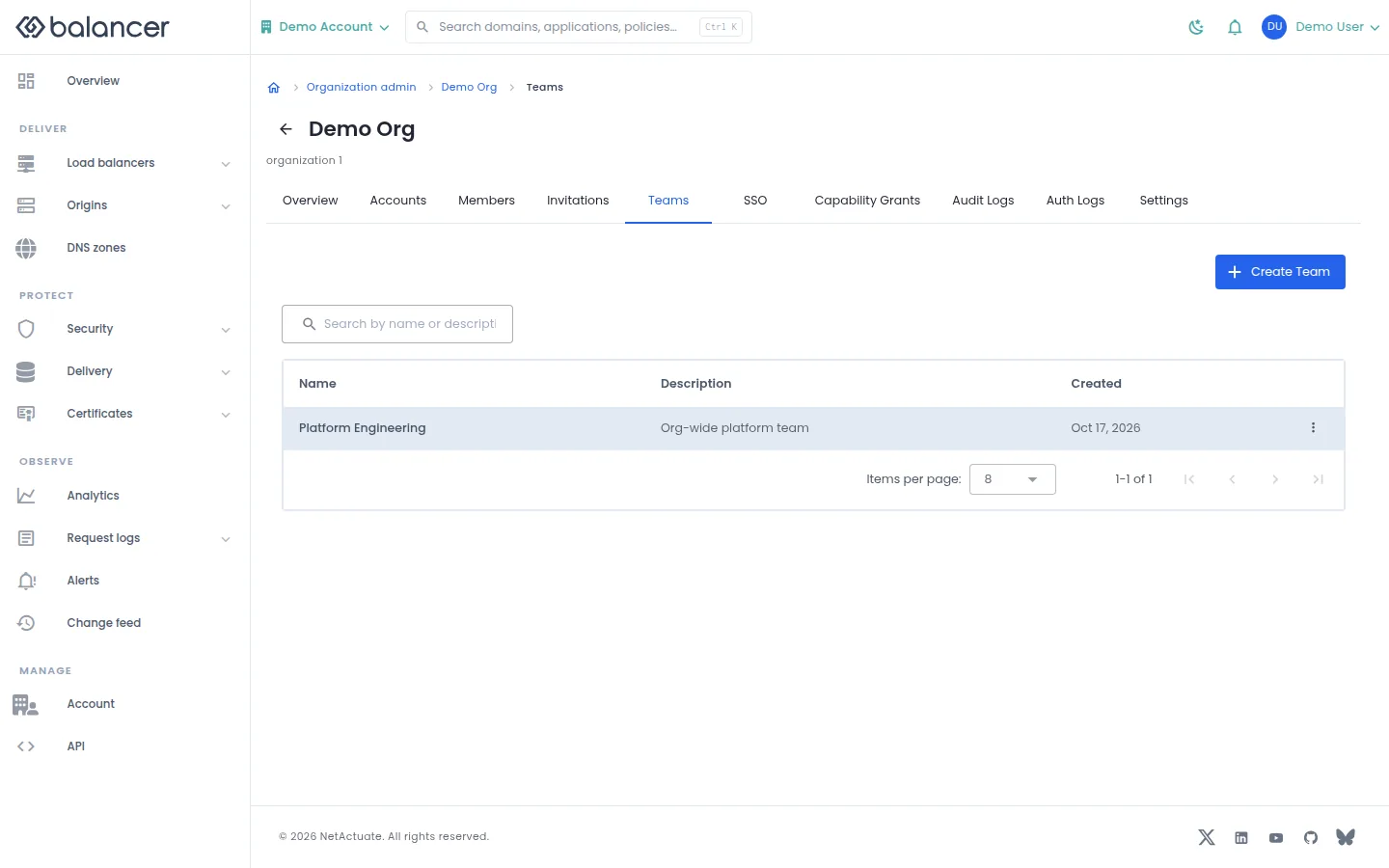
Create teams to manage access for a group of members.
- Open Teams, then select Create Team.
- Enter Team Name and optionally Description (optional). Select Create Team.
- Verify the team in Teams. In account administration, open the team to manage its members.
| Field | Required | Description | Matching API field |
|---|---|---|---|
| Team Name | Yes | 1-128 characters. | name |
| Description (optional) | No | Up to 255 characters. | description |
API equivalent
Create an organization team. Use the API host shown in the Balancer portal in place of https://<your-api-host>. Set $BALANCER_API_KEY to your credential for this context. Set $ORGANIZATION_ID to the selected resources.
curl --fail-with-body --silent --show-error --request POST \
  --url "https://<your-api-host>/organizations/$ORGANIZATION_ID/teams" \
  --header "x-api-key: $BALANCER_API_KEY" \
  --header "Content-Type: application/json" \
  --data '{"team":{"name":"example.com"}}'
Expect HTTP 200 with code set to 200. The response acknowledges the stored change. Reopen the portal screen or run the read example below to verify it.
API reference: Create an organization team.
Verify with the API
Use the API host shown in the Balancer portal in place of https://<your-api-host>. Set $BALANCER_API_KEY to your credential for this context. Set $ORGANIZATION_ID to the resource identifiers you want to inspect.
curl --fail-with-body --silent --show-error --request GET \
  --url "https://<your-api-host>/organizations/$ORGANIZATION_ID/teams" \
  --header "x-api-key: $BALANCER_API_KEY"
Expect HTTP 200 with code set to 200. The response includes data.teams, data.teams[].teamId, data.teams[].name, data.teams[].description. Compare the returned configuration with the screen. A successful configuration read does not verify that an edge has applied it.
API reference: List organization teams.
Related
- Task guide: account access.
- Concepts: accounts.
- Delete an empty organization container.
- Return one organization.
- List accounts attached to an organization.
- List organization audit logs.
- List organization authentication logs.
- List organization capability grants.
- List organization invitations.
- List organization members.
- List organization SSO providers.
- List organization teams.
- Update an organization container.
- Attach an existing account to the organization.
- Create an organization capability grant.
- Create an organization invitation.
- Create an organization SSO provider.
- Create an organization team.