DNS zones
Use DNS zones to manage authoritative records, export zones and inspect certificate challenges.
Note: Balancer is in beta. Endpoints, fields and behavior may change before general availability, and the feature must be enabled on your account before use. Contact your NetActuate account manager to request access.
DNS zones
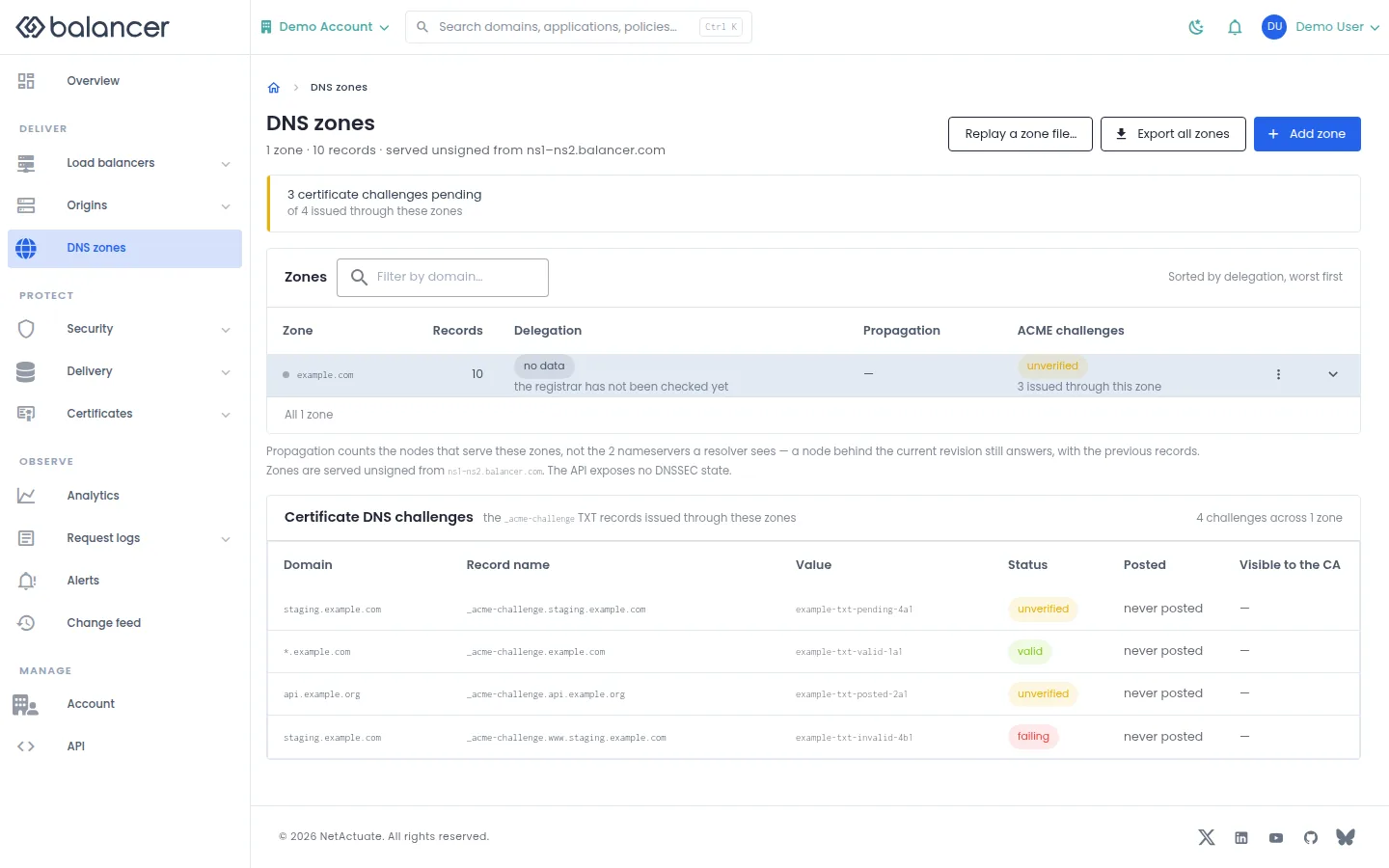
List zones and certificate DNS challenges for the current account.
- Open DNS zones. Select Add zone and enter Apex domain name, such as example.com. Select Create zone.
- Verify the zone appears and open it to manage records.
- Use Export all zones to export zones, or Replay a zone file... to review and apply a zone file. Check the replay results for each operation.
| Field | Required | Description | Matching API field |
|---|---|---|---|
| Apex domain name | Yes | 1-255 characters. Validation: Domain name is required. | name |
API equivalent
Create a zone. This does not change registrar delegation. Use the API host shown in the Balancer portal in place of https://<your-api-host>. Set $BALANCER_API_KEY to your credential for this context.
curl --fail-with-body --silent --show-error --request POST \
  --url "https://<your-api-host>/dns-zones" \
  --header "x-api-key: $BALANCER_API_KEY" \
  --header "Content-Type: application/json" \
  --data '{"name":"example.com"}'
Expect HTTP 200 with code set to 200. The response acknowledges the stored change. Reopen the portal screen or run the read example below to verify it.
API reference: Create a new authoritative DNS zone.
Verify with the API
Use the API host shown in the Balancer portal in place of https://<your-api-host>. Set $BALANCER_API_KEY to your credential for this context.
curl --fail-with-body --silent --show-error --request GET \
  --url "https://<your-api-host>/dns-zones" \
  --header "x-api-key: $BALANCER_API_KEY"
Expect HTTP 200 with code set to 200. The response includes data.meta.total, data.meta.offset, data.meta.limit, data.meta.suggestedFilters. Compare the returned configuration with the screen. A successful configuration read does not verify that an edge has applied it.
API reference: List DNS zones associated with your account.
DNS records
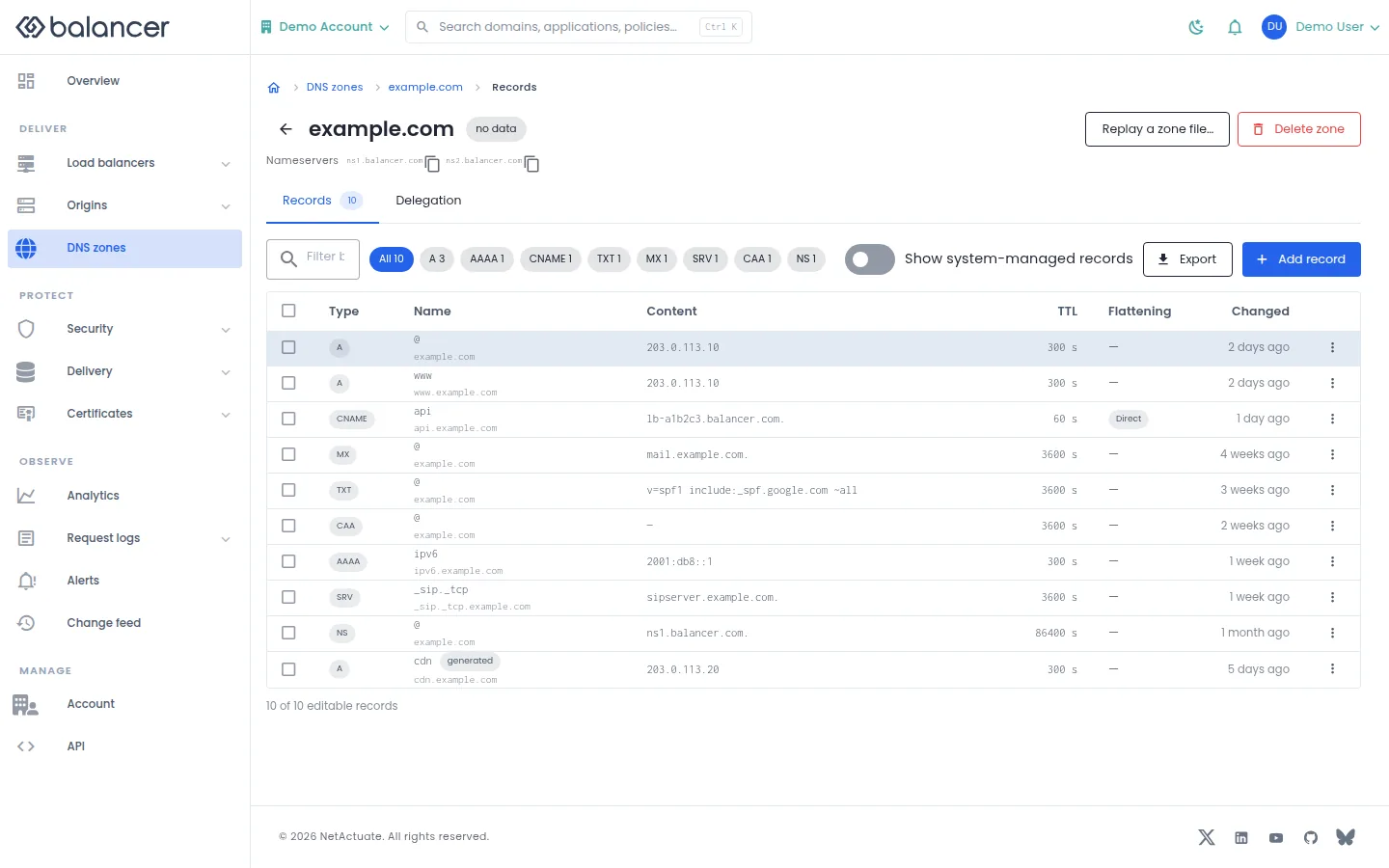
Add or edit records in a zone. System-managed records are shown separately and are not ordinary editable records.
- Open a zone and select Records. Select Add record.
- Choose Type, enter Name, TTL (seconds) and the type-specific content fields below, then save.
- Verify the record in the table. Use Show system-managed records to include managed entries.
- Use Export to export the zone. Review Delete zone carefully before confirming deletion.
| Field | Required | Description | Matching API field |
|---|---|---|---|
| Type | Yes | A, AAAA, CNAME, MX, TXT, CAA, NS, SRV or PTR. | record.type |
| Name | Yes | Non-empty name; initially @ for the zone apex. | record.name |
| TTL (seconds) | Yes | Whole seconds, 60-86400. | record.ttl |
| Value | For A, AAAA, CNAME, NS or PTR | Address or target for the selected type. | record.content.raw.value |
| Text content | For TXT | TXT record content. | record.content.txt.value |
| Priority | For MX and SRV | Non-negative whole number. | record.content.mx.priority / record.content.srv.priority |
| Exchange (target) | For MX | Mail exchange hostname. | record.content.mx.target |
| Weight | For SRV | Non-negative whole number. | record.content.srv.weight |
| Port | For SRV | 1-65535. | record.content.srv.port |
| Target | For SRV | Service target hostname. | record.content.srv.target |
| Flags | For CAA | Whole number, 0-255. | record.content.caa.flags |
| Tag | For CAA | issue, issuewild or iodef. | record.content.caa.tag |
| Value (CAA) | For CAA | CAA value. | record.content.caa.value |
| Flatten CNAME | No | Flatten this CNAME. | record.doFlatten |
| Enabled | No | Enable or disable the record. | record.isDisabled |
| Replay into | When multiple zones are available | Choose the target zone for replay. | zoneId |
| Zone file / ...or paste the file | For replay | One create request per parsed record; stopping leaves completed records in place. | None |
Verify with the API
Use the API host shown in the Balancer portal in place of https://<your-api-host>. Set $BALANCER_API_KEY to your credential for this context. Set $ZONE_ID to the resource identifiers you want to inspect.
curl --fail-with-body --silent --show-error --request GET \
  --url "https://<your-api-host>/dns-zones/$ZONE_ID" \
  --header "x-api-key: $BALANCER_API_KEY"
Expect HTTP 200 with code set to 200. The response includes data.zoneId, data.name, data.recordCt, data.version. Compare the returned configuration with the screen. A successful configuration read does not verify that an edge has applied it.
API reference: Get DNS zone associated with your account.
DNS records (alternate view 2)
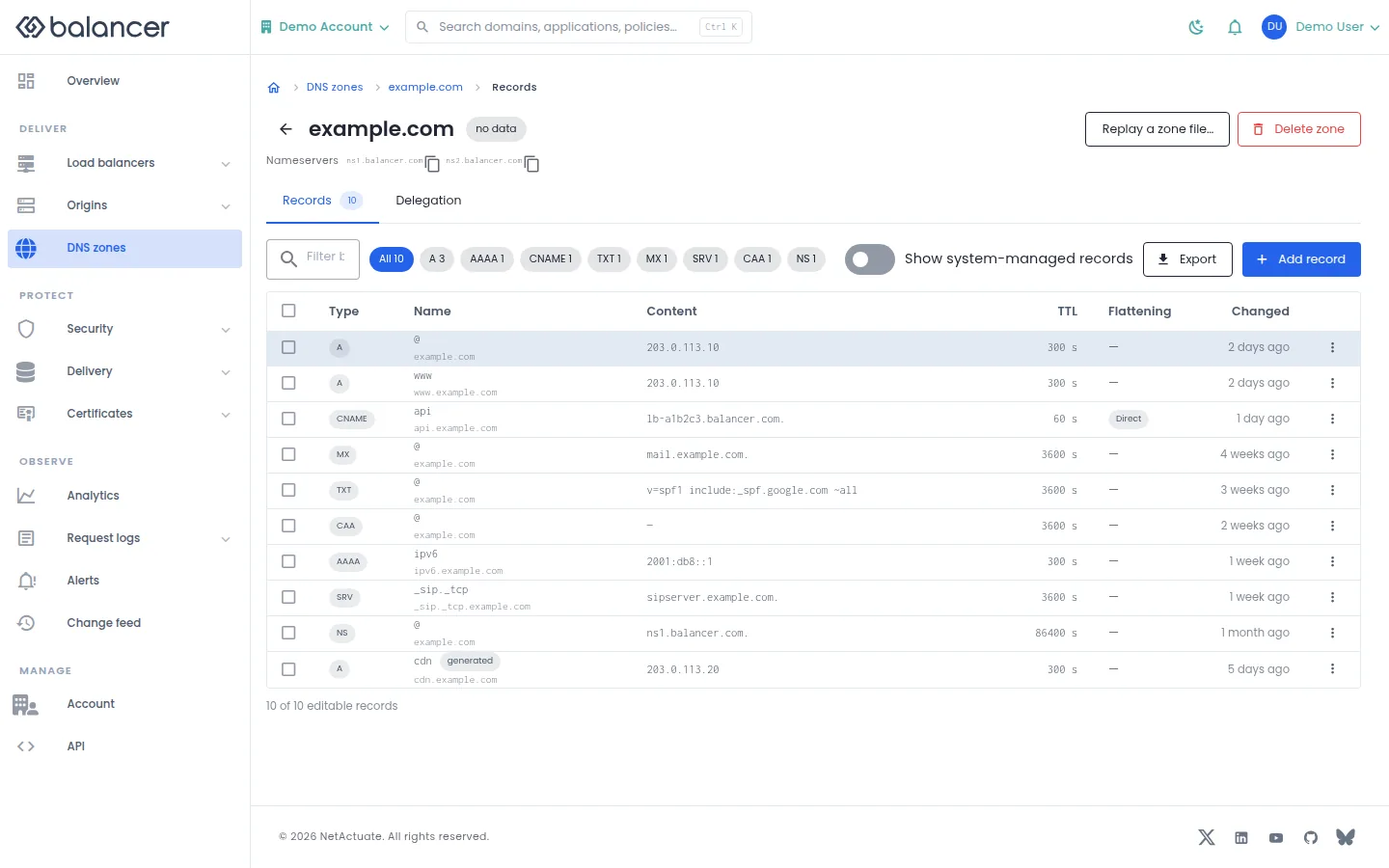
Add or edit records in a zone. System-managed records are shown separately and are not ordinary editable records.
- Open a zone and select Records. Select Add record.
- Choose Type, enter Name, TTL (seconds) and the type-specific content fields below, then save.
- Verify the record in the table. Use Show system-managed records to include managed entries.
- Use Export to export the zone. Review Delete zone carefully before confirming deletion.
| Field | Required | Description | Matching API field |
|---|---|---|---|
| Type | Yes | A, AAAA, CNAME, MX, TXT, CAA, NS, SRV or PTR. | record.type |
| Name | Yes | Non-empty name; initially @ for the zone apex. | record.name |
| TTL (seconds) | Yes | Whole seconds, 60-86400. | record.ttl |
| Value | For A, AAAA, CNAME, NS or PTR | Address or target for the selected type. | record.content.raw.value |
| Text content | For TXT | TXT record content. | record.content.txt.value |
| Priority | For MX and SRV | Non-negative whole number. | record.content.mx.priority / record.content.srv.priority |
| Exchange (target) | For MX | Mail exchange hostname. | record.content.mx.target |
| Weight | For SRV | Non-negative whole number. | record.content.srv.weight |
| Port | For SRV | 1-65535. | record.content.srv.port |
| Target | For SRV | Service target hostname. | record.content.srv.target |
| Flags | For CAA | Whole number, 0-255. | record.content.caa.flags |
| Tag | For CAA | issue, issuewild or iodef. | record.content.caa.tag |
| Value (CAA) | For CAA | CAA value. | record.content.caa.value |
| Flatten CNAME | No | Flatten this CNAME. | record.doFlatten |
| Enabled | No | Enable or disable the record. | record.isDisabled |
| Replay into | When multiple zones are available | Choose the target zone for replay. | zoneId |
| Zone file / ...or paste the file | For replay | One create request per parsed record; stopping leaves completed records in place. | None |
Verify with the API
Use the API host shown in the Balancer portal in place of https://<your-api-host>. Set $BALANCER_API_KEY to your credential for this context. Set $ZONE_ID to the resource identifiers you want to inspect.
curl --fail-with-body --silent --show-error --request GET \
  --url "https://<your-api-host>/dns-zones/$ZONE_ID/records" \
  --header "x-api-key: $BALANCER_API_KEY"
Expect HTTP 200 with code set to 200. The response includes data.meta.total, data.meta.offset, data.meta.limit, data.meta.suggestedFilters. Compare the returned configuration with the screen. A successful configuration read does not verify that an edge has applied it.
API reference: Returns the DNS records for a specific zone.
Delegation
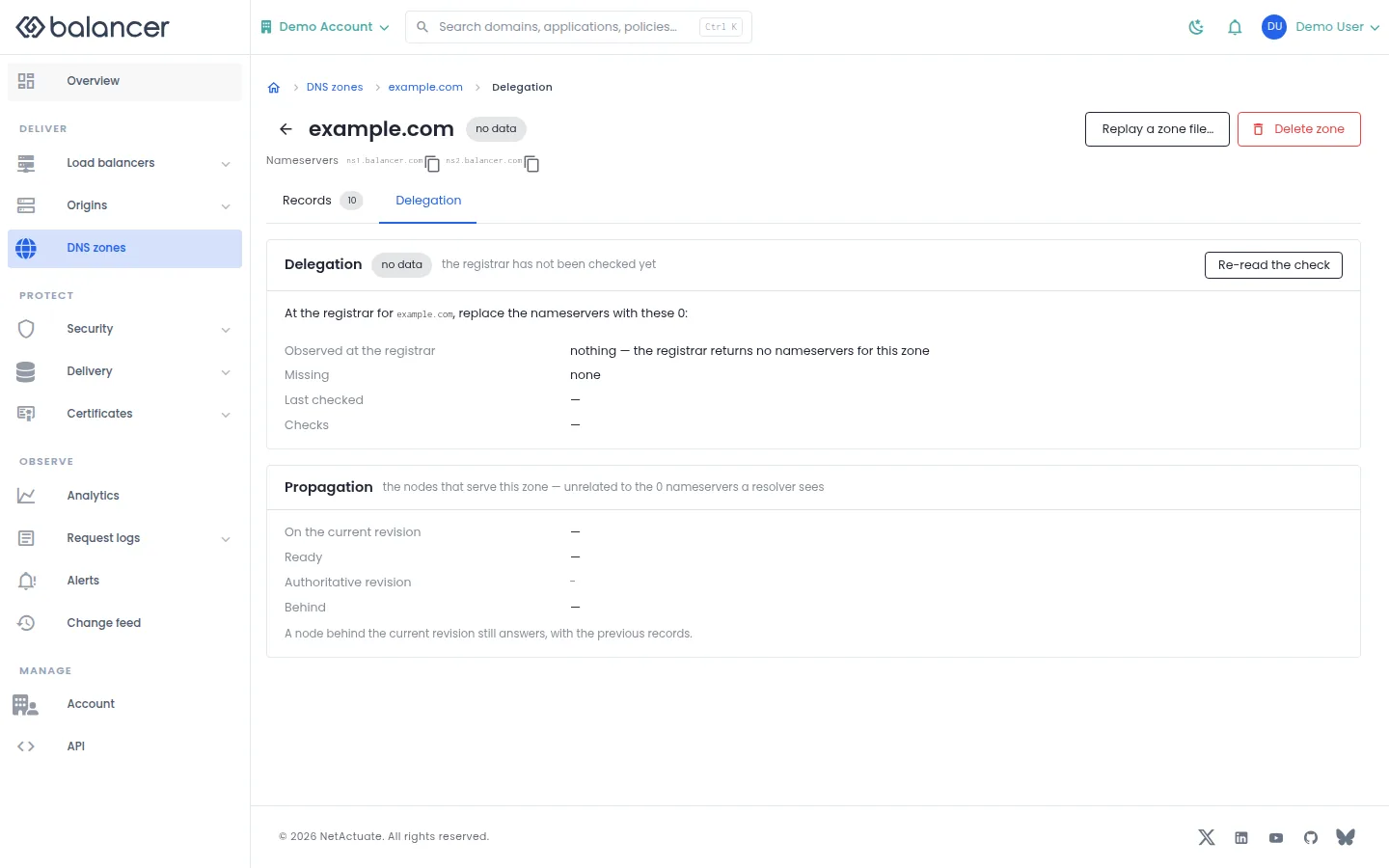
Review nameserver delegation and propagation information displayed for a zone. Missing values are not successful checks.
- Open a zone and select Delegation.
- Review Nameservers, Observed at the registrar, Missing and Last checked.
- Select Re-read the check to refresh the displayed check. Review Propagation separately from registrar delegation.
Verify with the API
Use the API host shown in the Balancer portal in place of https://<your-api-host>. Set $BALANCER_API_KEY to your credential for this context. Set $ZONE_ID to the resource identifiers you want to inspect.
curl --fail-with-body --silent --show-error --request GET \
  --url "https://<your-api-host>/dns-zones/$ZONE_ID" \
  --header "x-api-key: $BALANCER_API_KEY"
Expect HTTP 200 with code set to 200. The response includes data.zoneId, data.name, data.recordCt, data.version. Compare the returned configuration with the screen. A successful configuration read does not verify that an edge has applied it.
API reference: Get DNS zone associated with your account.
Delegation (alternate view 2)
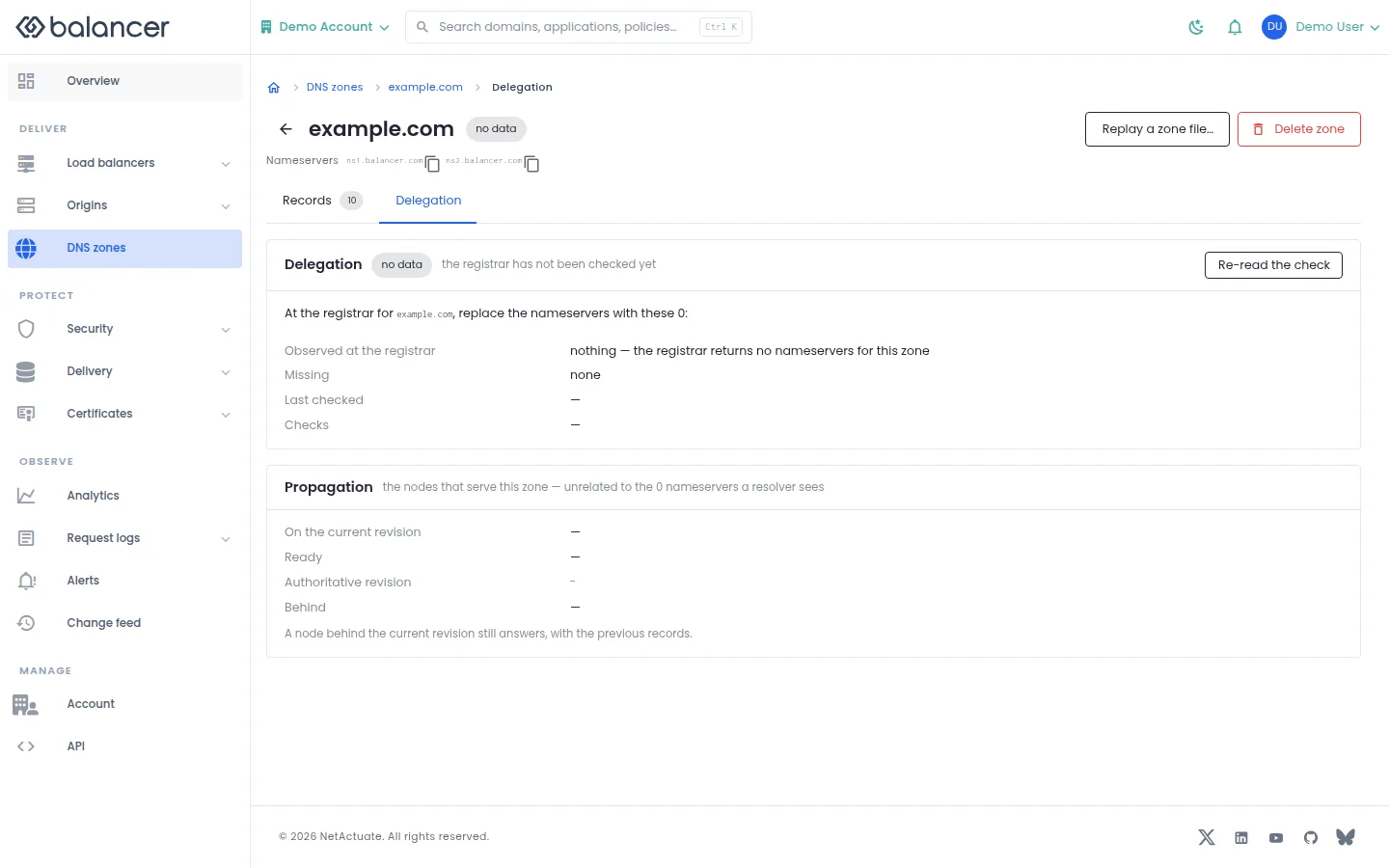
Review nameserver delegation and propagation information displayed for a zone. Missing values are not successful checks.
- Open a zone and select Delegation.
- Review Nameservers, Observed at the registrar, Missing and Last checked.
- Select Re-read the check to refresh the displayed check. Review Propagation separately from registrar delegation.
Verify with the API
Use the API host shown in the Balancer portal in place of https://<your-api-host>. Set $BALANCER_API_KEY to your credential for this context. Set $ZONE_ID to the resource identifiers you want to inspect.
curl --fail-with-body --silent --show-error --request GET \
  --url "https://<your-api-host>/dns-zones/$ZONE_ID" \
  --header "x-api-key: $BALANCER_API_KEY"
Expect HTTP 200 with code set to 200. The response includes data.zoneId, data.name, data.recordCt, data.version. Compare the returned configuration with the screen. A successful configuration read does not verify that an edge has applied it.
API reference: Get DNS zone associated with your account.
Related
- Task guide: dns.
- Concepts: http load balancers.
- Delete a DNS zone and its records.
- List DNS zones associated with your account.
- Get DNS zone associated with your account.
- Returns the DNS records for a specific zone.
- Create a new authoritative DNS zone.
- Create a DNS record inside a zone associated with your account.