Balancer portal
Sign in, choose an account or organization, and use the Balancer portal to configure and inspect your resources.
Note: Balancer is in beta. Endpoints, fields and behavior may change before general availability, and the feature must be enabled on your account before use. Contact your NetActuate account manager to request access.
The sidebar groups tasks under DELIVER, PROTECT, OBSERVE and MANAGE. Open Load balancers, Origins or DNS zones for delivery resources; Security, Delivery or Certificates for policies; Analytics, Request logs, Alerts or Change feed for observations; and Account or API for identity and API tools.
Use the top-bar search, Search domains, applications, policies..., or press Ctrl K to find a resource. Change Theme in Account, Profile. The top bar identifies your current context.
Sign in
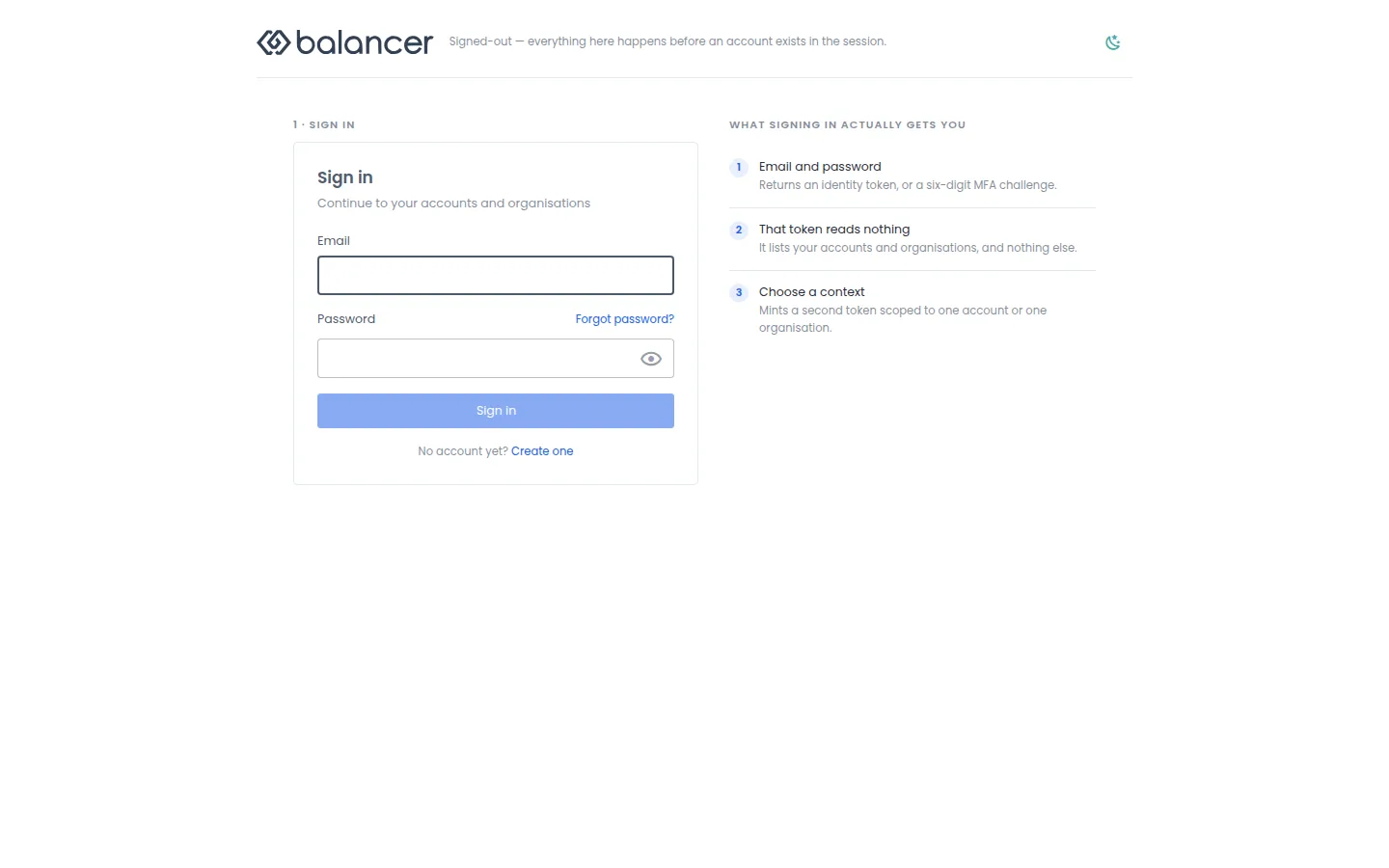
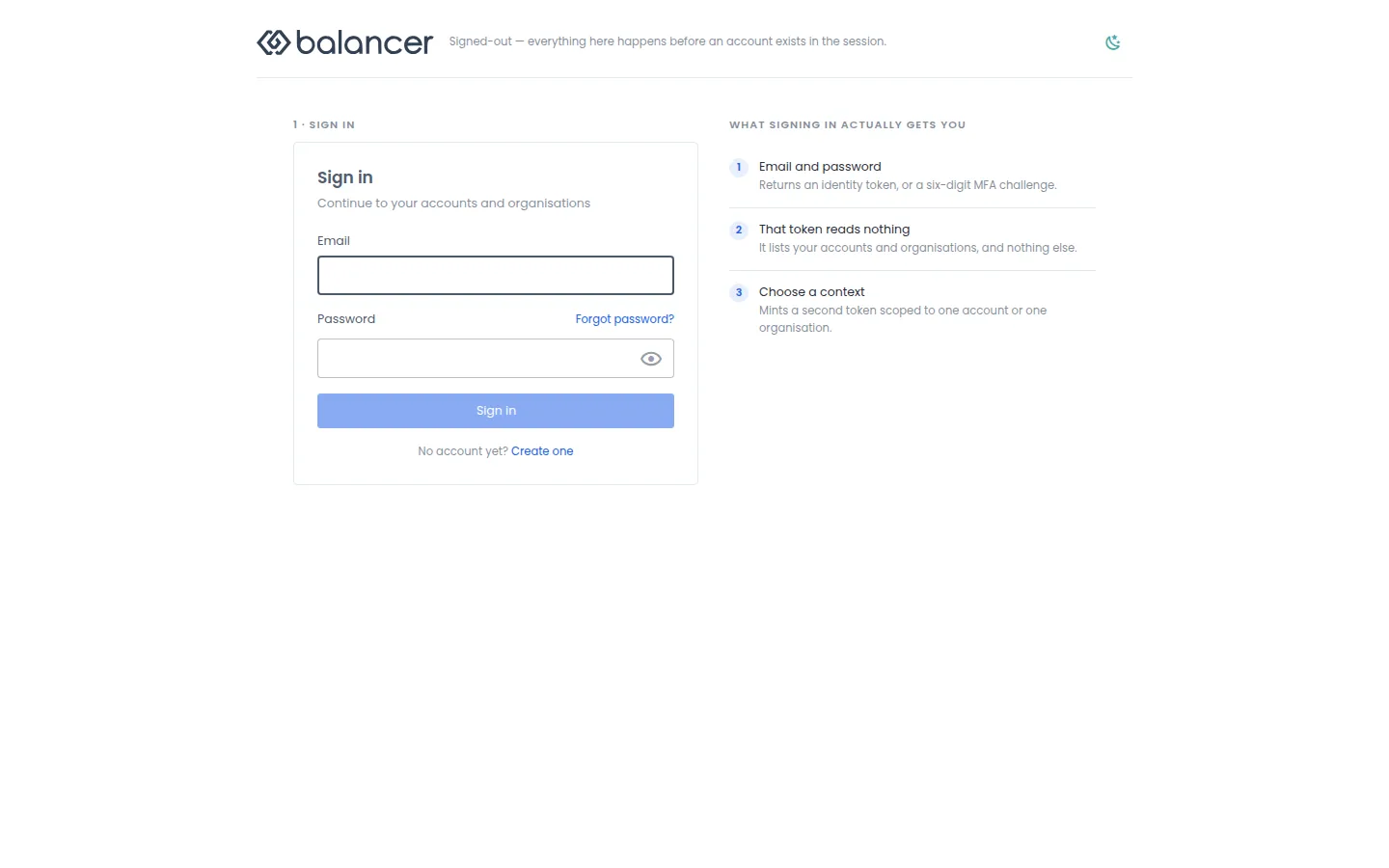
Sign in with your identity before choosing the account or organization where you want to work.
- Open Balancer portal. Enter Email. If Continue appears, select it and choose where to sign in if prompted. Enter Password, then select Sign in.
- If prompted for a second factor, complete the verification below. Otherwise continue to Choose where to work.
| Field | Required | Description | Matching API field |
|---|---|---|---|
| Yes | Valid email address. | email | |
| Password | Yes | Your sign-in password; cannot be empty. | password |
Verify your sign-in
The second-factor screen accepts an authenticator code or a recovery code. If the challenge expires, start sign-in again.
- Enter the six digits from your authenticator app and select Verify and continue.
- To use a recovery code, select Use a recovery code instead, enter Recovery code, then select Verify and continue.
- Verify that you reach the context chooser or your selected context.
| Field | Required | Description | Matching API field |
|---|---|---|---|
| Authenticator app | For authenticator verification | Exactly 6 digits. | code |
| Recovery code | For recovery verification | 8-64 characters. Validation: Recovery code required. | recoveryCode |
Choose where to work
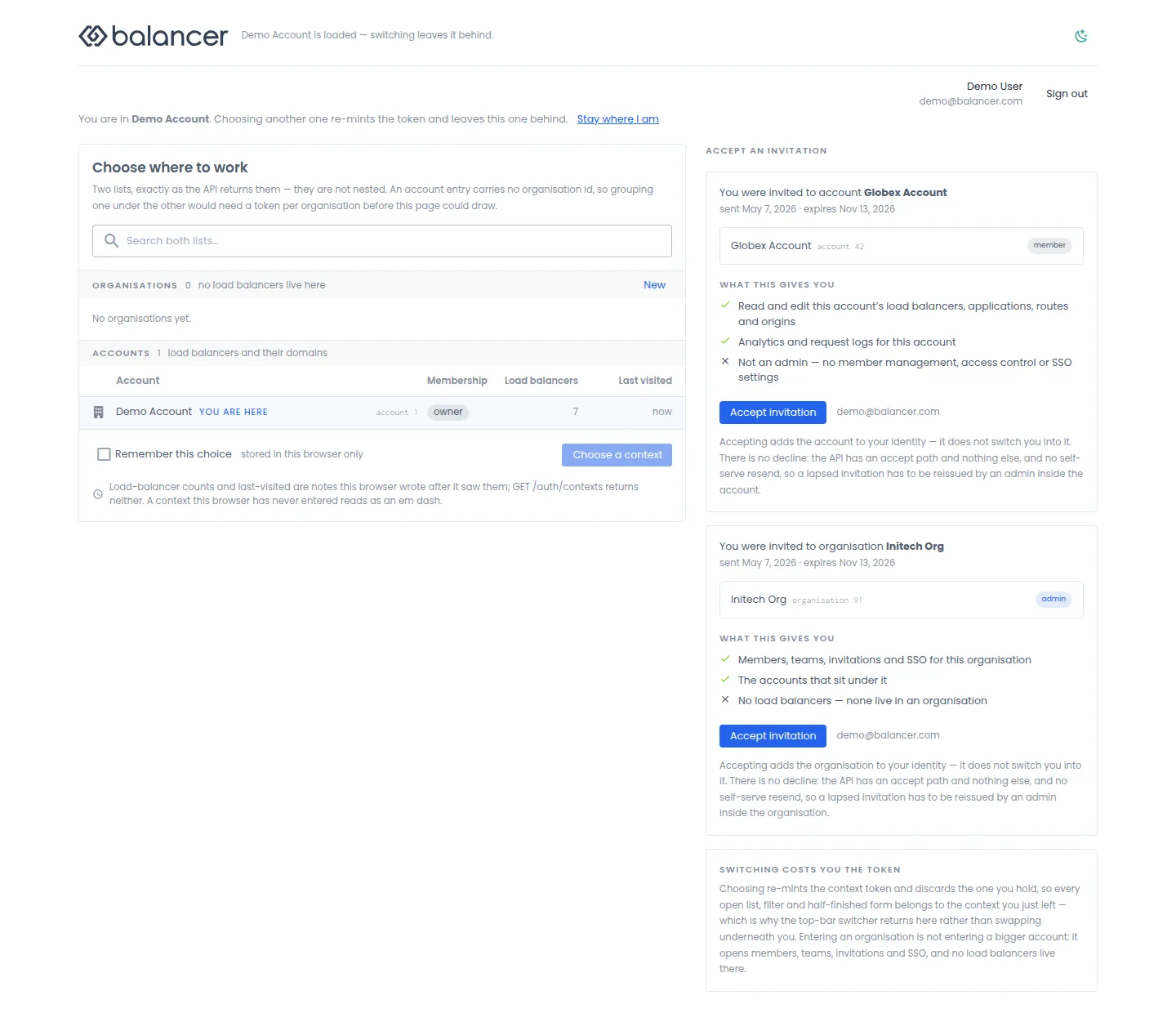
Accounts contain load balancers. Organizations contain account administration. Remembered choices apply only in this browser.
- Select an account or organization under Choose where to work.
- Optionally select Remember this choice, then select Choose a context. Switching replaces the current context, so finish unsaved work first.
- For a pending invitation, select Accept invitation. Acceptance adds membership; choose the new context separately.
- Verify the selected context in the top bar. Use Switch account under Account to return here.
| Field | Required | Description | Matching API field |
|---|---|---|---|
| Remember this choice | No | Store the context choice in this browser. | None |
Verify available contexts with the API
Use the API host shown in the Balancer portal in place of https://<your-api-host>. For this request, set $BALANCER_API_KEY to your sign-in bearer credential. An account API key does not replace the identity sign-in flow.
curl --fail-with-body --silent --show-error --request GET \
  --url "https://<your-api-host>/auth/contexts" \
  --header "Authorization: Bearer $BALANCER_API_KEY"
Expect HTTP 200 with data.accounts and data.organizations. Compare the names with Choose where to work. The identity credential lists available contexts; choose one before managing its resources.
API reference: List available account and organization contexts.